

A prompt to add error tracking to a Lovable app, and how to check it
A setup prompt is only as good as its file order. Ours put init a few lines too late: in a production build it reported 0 of 12 start-up and page crashes. The fixed order reported 12 of 12.
Andrew Babo6 min read
On this page

To get error tracking right in a Lovable app, tell Lovable exactly which files to touch and in which order, then make it prove that each part reports. The order is the part most prompts leave out, and it decides whether start-up crashes are reported at all.
We learned this from our own prompt. On 26 October 2026 we ran Belvador's TanStack Start setup against four browser failures in a production build. The recipe we shipped then reported none of the 12 crashes. With three lines moved and one added, it reported all 12.
What the prompt has to pin down#
An agent that adds error tracking edits files you did not write, in an app you may not read. The prompt has to settle the decisions the agent would otherwise guess:
- The exact project key and package version. The DSN comes from your project, never from an example.
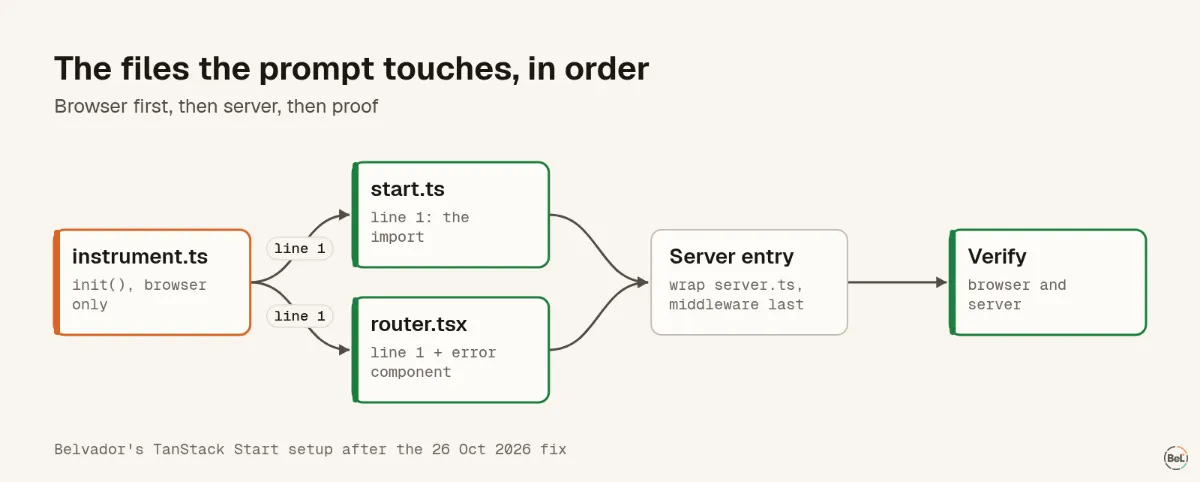
- The file order. The tracker starts in its own file, imported on the first line of every entry file.
- Where route errors are reported. In TanStack Start, through
defaultOnCatch, which needs an error component to exist. - What stays. Existing middleware stays in order, security headers stay, and the Content-Security-Policy is extended, not replaced.
- No business logic. The agent adds reporting and changes nothing else.
- Proof. One check per runtime, browser and server, and removal of any test code afterwards.
Points 4 to 6 are habits any careful prompt has. Points 2 and 3 are specific to how a TanStack Start app loads, and we had them wrong.
Why the order decides what gets reported#
JavaScript runs a file's imports before the file's own code. MDN describes it as side effects that "are produced before the rest of the module's code runs" (MDN). If the tracker starts in the body of src/router.tsx, every page module the router imports has already run by then. In the browser, src/start.ts and whatever it imports run even earlier.
We broke a TanStack Start app four ways, each only in the browser, and built it for production. The old recipe started the tracker in src/router.tsx and set defaultOnCatch. The fixed recipe imports ./instrument first in src/start.ts and src/router.tsx, and adds an error component.
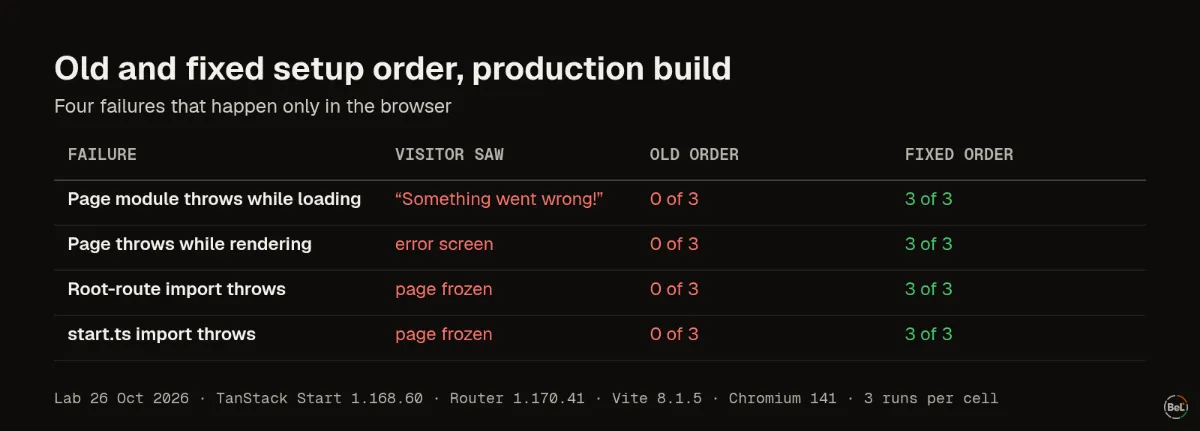
Two separate problems hid in the old recipe:
- Start-up crashes happened before the tracker existed. A module imported by the root route or by
src/start.tsthrew while loading. The server-rendered page stayed on screen but never became interactive, and nothing was reported. - Page errors went to a fallback that reports nothing.
defaultOnCatchruns only inside a route's error boundary, and a route has one only when it, or the router, has an error component. Without one, the error reached TanStack Router's outermost "Something went wrong!" screen, which logged a warning and did not calldefaultOnCatch.
Adding only an error component fixed page errors (3 of 3) but not the start-up crashes. Importing the tracker first only in src/router.tsx caught the root-route crash but not the one in src/start.ts. It took all three changes. We updated Belvador's setup guide, the prompt in the app and two regression tests the same day.
The lines to add to any setup prompt#
Whatever error tracker you use, these rules fit a Lovable TanStack Start app. Paste them under the tool's own setup instructions:
Rules for this setup:- Put the tracker's init call in its own file, src/instrument.ts, inside if (typeof window !== "undefined") { ... }. Do not name it instrument.client.ts.- Make import "./instrument" the first line of src/start.ts and of src/router.tsx, above every other import.- Route errors must reach the tracker: if the root route in src/routes/__root.tsx has no errorComponent, add one or pass defaultErrorComponent to createRouter.- Keep existing middleware, security headers and the Content-Security-Policy. Add to them; never replace them.- Do not change business logic.- When done, list every file you changed and run the verification steps.The file name matters. TanStack Start rejects a *.client.ts file imported from src/router.tsx, because that file also runs on the server; our first attempt failed with exactly that error. In Belvador, the project page shows the complete prompt under Paste into your AI agent, and Copy prompt fills in your DSN. The AI agents page shows the same prompt, generated from the setup code itself, so the two never differ.
Make Lovable keep the order#
The first import can move later. A future edit may add an import above it or tidy the file. Lovable's Knowledge is the place for rules that should hold across requests: "Define persistent instructions for Lovable using workspace knowledge and project knowledge" (Lovable docs). One line is enough:
Keep import "./instrument" as the very first line of src/start.ts and src/router.tsx.Check that it worked, including the start-up case#
"I added it" is not the same as "it reports". Belvador's prompt ends with one connection check per runtime. verifyIntegration() in the browser and in a temporary server route reports verified, problem or unconfirmed, and a read-back shows which checks reached your server (verify guide). These checks never become issues or alerts.
Then test the case that broke our old recipe, in the preview:
- Add
throw new Error("startup test")at the top of a small file thatsrc/routes/__root.tsximports. - Open the preview. The page should freeze or show an error, and the error tracker should show "startup test".
- Remove the line.
If step 2 shows nothing in the tracker, the import order is wrong. In our lab the dev server and the production build gave the same results, so the preview is a fair place to run this.
When Lovable gets something wrong along the way, its own guide recommends switching to Plan mode "after one or two failed attempts" (Lovable debugging guide). Our post on Claude Code and production errors tested why an exact error beats a description when you hand a bug to an agent.
What Lovable already gives you#
Lovable has its own Project monitoring, in beta on paid plans. It reviews your code and recent visitor errors on a schedule and emails the project owner about important findings (Project monitoring docs). Keep it on if you have it.
A separate error tracker adds what a scheduled review does not: every error as it happens, grouped into issues, with the stack and release, and alerts where you will see them. With Belvador that means alerts to your own Slack, Telegram or email, and the error data stays on a server in your own Hetzner account. The blank-page post covers the one failure neither can report, a main bundle that never loads, and the monitoring post adds the outside check for it.
Limits of this test#
One synthetic TanStack Start app, four failure types, Chromium only, server on Node rather than Cloudflare Workers. The failures were browser-side, which is where the import order matters. We did not test other trackers' TanStack Start packages; the rules above follow from how ES modules and TanStack Router behave, not from any one product. The TanStack Start guide and TanStack Start page show Belvador's full setup.
Part of the guide: Monitoring vibe-coded apps: what breaks after you publish
Related posts
All posts
Guides
Monitoring vibe-coded apps: what breaks after you publish
We served five broken builds of a React app. Every page was blank and returned HTTP 200. An error tracker reported three, one of them only after we moved a single import line.
Andrew Babo7 min read
Guides
Lovable app shows a blank page: find the cause in the console
Open the published page, open the console, reload. In our tests the first red line told five kinds of blank or frozen page apart, and each one has a different fix.
Andrew Babo5 min read
Read next in the docs
See your own production errors this way
Belvador runs on your own Hetzner server: errors, cron jobs, uptime and traces, with your data staying yours.